


# HyprPanel 🚀
A panel built for Hyprland with [AGS](https://github.com/Aylur/ags)
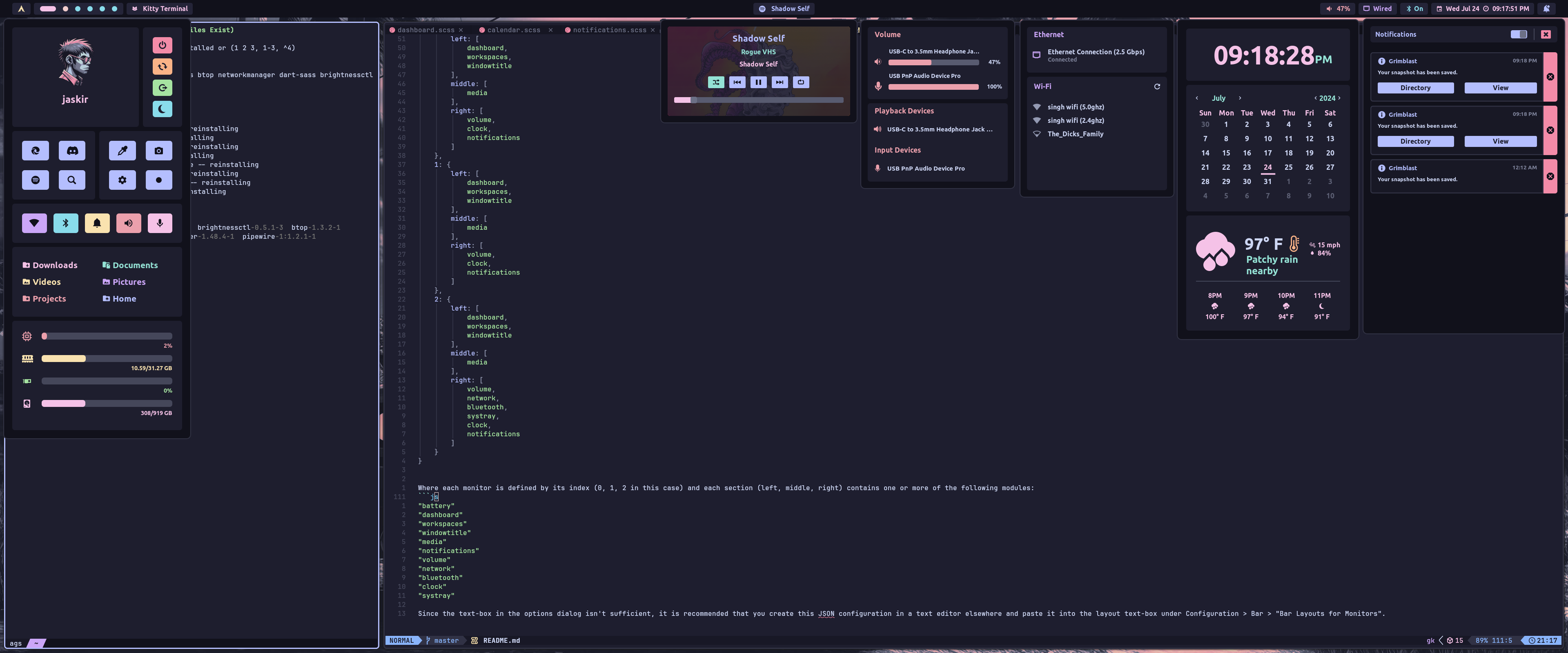
## Installation
The [HyprPanel Wiki](https://hyprpanel.com/getting_started/installation.html) contains in depth instructions for installing the panel and all of its dependencies. The instructions below are general instructions for installing the panel.
## Requirements
Bun
```sh
curl -fsSL https://bun.sh/install | bash && \
sudo ln -s $HOME/.bun/bin/bun /usr/local/bin/bun
```
Additional dependencies:
```sh
pipewire
libgtop
bluez
bluez-utils
grimblast
gpu-screen-recorder
hyprpicker
btop
networkmanager
matugen
wl-clipboard
swww
dart-sass
brightnessctl
gnome-bluetooth-3.0
```
Optional Dependencies:
```sh
## Used for Tracking GPU Usage in your Dashboard (NVidia only)
python
python-gpustat
## Only if a pywal hook from wallpaper changes applied through settings is desired
pywal
```
Arch (pacman):
```bash
sudo pacman -S pipewire libgtop bluez bluez-utils btop networkmanager dart-sass wl-clipboard brightnessctl swww python gnome-bluetooth-3.0
```
Arch (AUR):
```bash
yay -S grimblast-git gpu-screen-recorder hyprpicker matugen-bin python-gpustat aylurs-gtk-shell-git
```
For NixOS/Home-Manager, see [NixOS & Home-Manager instructions](#nixos--home-manager).
## Instructions
### AGS
Once everything is installed you need to put the contents of this repo in `~/.config/ags`.
If you already have something in `~/.config/ags`, it's recommended that you back it up with:
```bash
mv $HOME/.config/ags $HOME/.config/ags.bkup
```
Otherwise you can use this command to install the panel:
```bash
git clone https://github.com/Jas-SinghFSU/HyprPanel.git && \
ln -s $(pwd)/HyprPanel $HOME/.config/ags
```
### Nerd Fonts
Additionally, you need to ensure that you have a [Nerd Font](https://www.nerdfonts.com/font-downloads) installed for your icons to render properly.
### Launch the panel
Afterwards you can run the panel with the following command in your terminal:
```bash
ags
```
Or you can add it to your Hyprland config (hyprland.conf) to auto-start with:
```bash
exec-once = ags
```
### NixOS & Home-Manager
Alternatively, if you're using NixOS and/or Home-Manager, you can setup AGS using the provided Nix Flake. First, add the repository to your Flake's inputs, and enable the overlay.
```nix
# flake.nix
{
inputs.hyprpanel.url = "github:Jas-SinghFSU/HyprPanel";
# ...
outputs = { self, nixpkgs, ... }@inputs:
let
# ...
system = "x86_64-linux"; # change to whatever your system should be.
pkgs = import nixpkgs {
inherit system;
# ...
overlays = [
inputs.hyprpanel.overlay
];
};
in {
# ...
}
}
```
Once you've set up the overlay, you can reference HyprPanel with `pkgs.hyprpanel` as if it were any other Nix package. This means you can reference it as a NixOS system/user package, a Home-Manager user package, or as a direct reference in your Hyprland configuration (if your configuration is managed by Home-Manager). The first three methods will add it to your `$PATH` (first globally, second two user-only), however the final will not.
```nix
# configuration.nix
# install it as a system package
environment.systemPackages = with pkgs; [
# ...
hyprpanel
# ...
];
# or install it as a user package
users.users..packages = with pkgs; [
# ...
hyprpanel
# ...
];
# home.nix
# install it as a user package with home-manager
home.packages = with pkgs; [
# ...
hyprpanel
# ...
];
# or reference it directly in your Hyprland configuration
wayland.windowManager.hyprland.settings.exec-once = [
"${pkgs.hyprpanel}/bin/hyprpanel"
];
```
### Notifications
HyprPanel handles notifications through the AGS built-in notification service. If you're already using a notification daemon such as Dunst or Mako, you may have to stop them to prevent conflicts with HyprPanel.
> NOTE: If your system is in a language other than English, the resource monitor in the dashboard may not work properly.
## Configuration
The HyprPanel comes with a configuration menu which is available by opening the Dashboard menu (click the button in the bar with the default - Arch - icon) and then clicking the Gear icon.
### Size
The panel is automatically scaled based on your font size in `Configuration > General`.
### Specifying bar layouts per monitor
To specify layouts for each monitor you can create a JSON object such as:
```JSON
{
"0": {
"left": [
"dashboard",
"workspaces",
"windowtitle"
],
"middle": [
"media"
],
"right": [
"volume",
"clock",
"notifications"
]
},
"1": {
"left": [
"dashboard",
"workspaces",
"windowtitle"
],
"middle": [
"media"
],
"right": [
"volume",
"clock",
"notifications"
]
},
"2": {
"left": [
"dashboard",
"workspaces",
"windowtitle"
],
"middle": [
"media"
],
"right": [
"volume",
"network",
"bluetooth",
"systray",
"clock",
"notifications"
]
}
}
```
Where each monitor is defined by its index (0, 1, 2 in this case) and each section (left, middle, right) contains one or more of the following modules:
```js
"battery"
"dashboard"
"workspaces"
"windowtitle"
"media"
"notifications"
"volume"
"network"
"bluetooth"
"clock"
"systray"
```
Since the text-box in the options dialog isn't sufficient, it is recommended that you create this JSON configuration in a text editor elsewhere and paste it into the layout text-box under Configuration > Bar > "Bar Layouts for Monitors".
### Additional Configuration
#### GPU Tracking
If you have an NVidia GPU, you can track your GPU usage in your Dashboard by going to your `Settings > Configuration > Dashboard Menu > Track GPU` and turning it on.